Dashboard
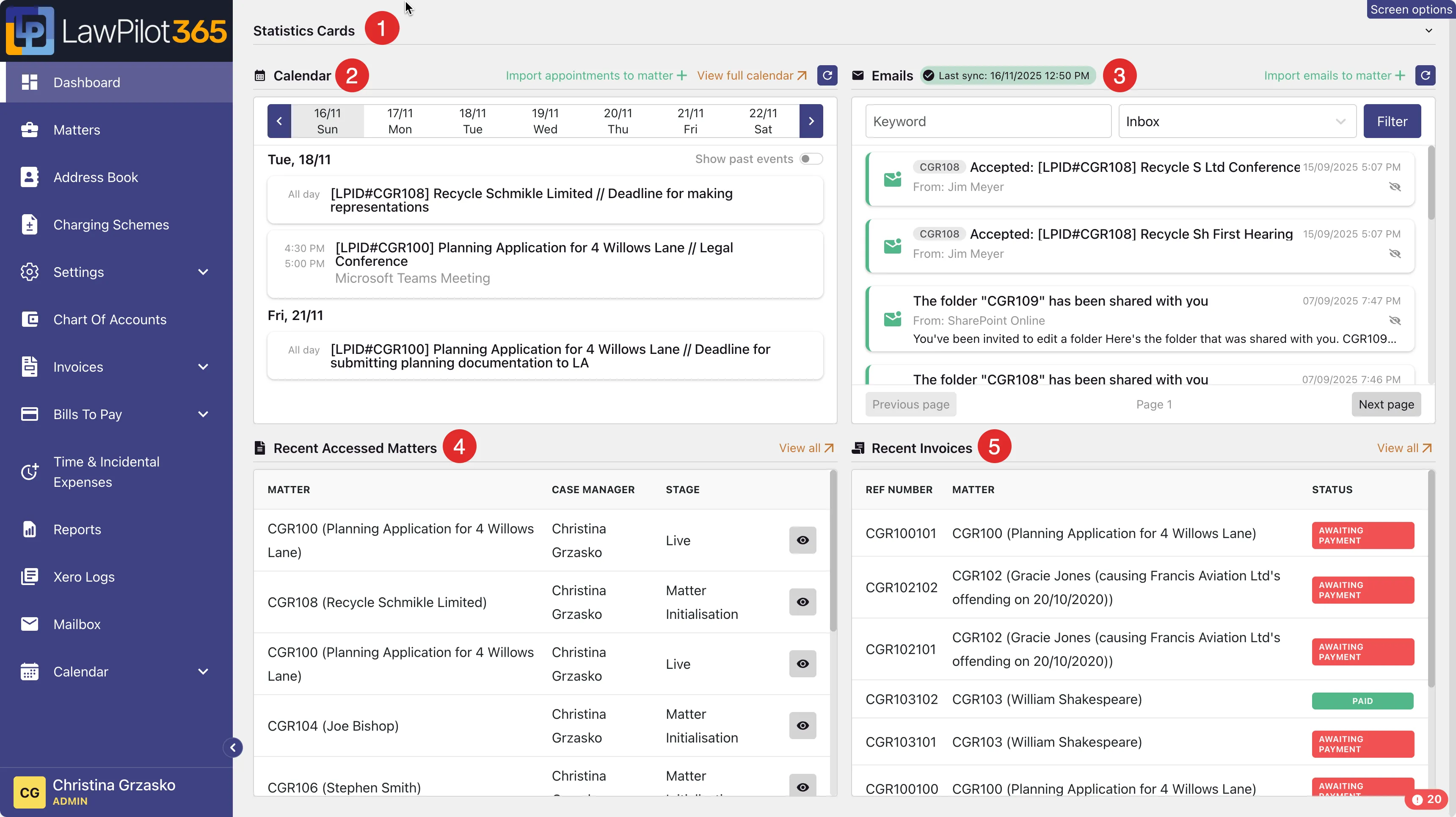
When a user first logs into LawPilot365, they will be taken to their Dashboard, which will display:
- The Statistics Cards accordian panel.
- The user’s personal Calendar.
- The user’s email inbox.
- A list of the user’s recent matters.
- A list of the recent invoices.
Statistics Cards
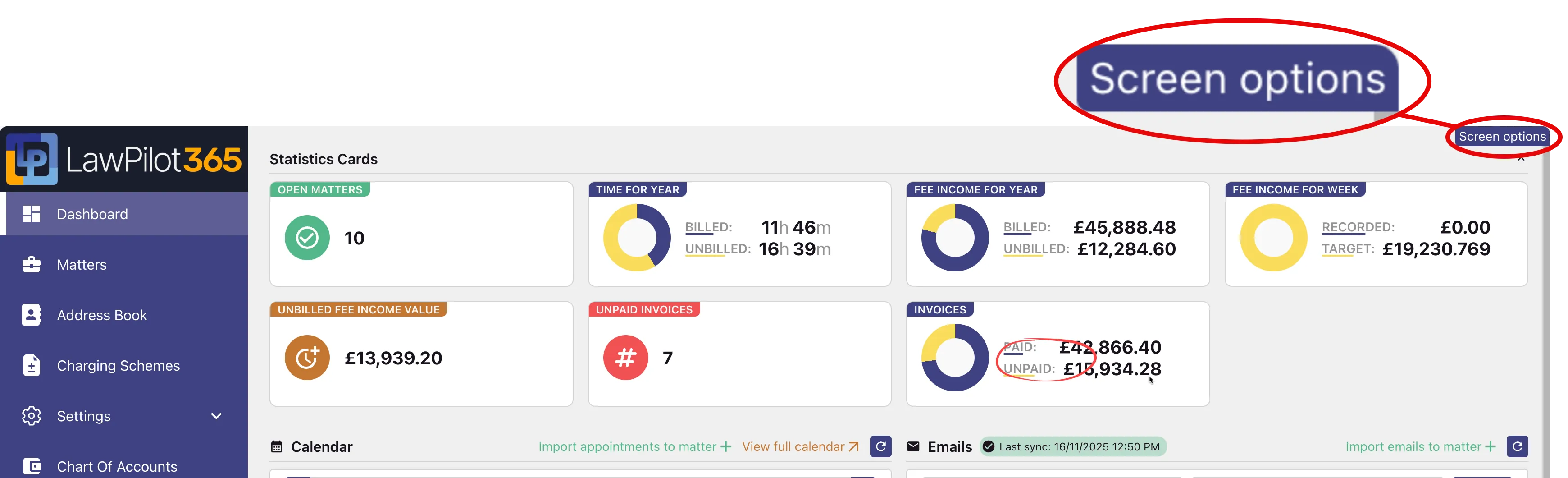
Section titled “Statistics Cards”When a user clicks on the up-caret icon in the top right hand corner of the Dashboard page, the Statistics Cards accordian panel expands.

Open Matters
Section titled “Open Matters”The OPEN MATTERS statistic card showns the number of open files where the logged-in user is a fee earner on the matter.
Time for Year
Section titled “Time for Year”The TIME FOR YEAR statistics card shows the total number of hours and value of all billed and unbilled work in progress for the logged-in user for the current financial year.
Fee Income for Year
Section titled “Fee Income for Year”The FEE INCOME FOR YEAR statistics card shows total number of hours and value of all billed and unbilled work for logged-in user for the current financial year.
Fee Income for Week
Section titled “Fee Income for Week”The FEE INCOME FOR WEEK statistics card shows the total value of the work recorded for logged-in user for the current week, as well as the target for this metric.
Unbilled Fee Income Value
Section titled “Unbilled Fee Income Value”The UNBILLED FEE INCOME VALUE statistics card shows the total value of all unbilled work (work in progress) for the logged-in user the current financial year.
Unpaid Invoices
Section titled “Unpaid Invoices”The UNPAID INVOICES statistics card shows the number of unpaid invoices for matters for which the logged-in user is allocated as a fee-earner.
Invoices
Section titled “Invoices”The INVOICES statistics card shows the total value of paid invoices, as well as the value of all unpaid invoices, for the logged-in user for all time.
Calendar
Section titled “Calendar”The Calendar panel shows the logged-in user’s personal calendar in an abbreviated form, defaulting to the current week. The hyperlink Import appointments to matter + allows a user to quickly link appointments to specific matters, and the View full calender ↗ hyperlink takes the user to the My Calendar page. When a user clicks on the reload icon their calendar will be reloaded to ensure their latest appointments are displayed.
Emails
Section titled “Emails”The Emails panel shows the logged-user’s email inbox in an abbreviated form. Users can filter the list and display another folder, for example their sent items, by enter text in the search box, selecting the relevant folder and clicking the filter button.
The list is paginated so users can use the Previous Page and Next Page buttons to traverse the entries.
The hyperlink Import emails to matter + opens an Import Emails to Matter slid-out panel. When a user clicks on the reload icon their inbox will be reloaded to ensure that their latest emails are displayed.
Recent Accessed Matters
Section titled “Recent Accessed Matters”The Recent Accessed Matters panel displays a list of matters that the user has recently viewed. If a user clicks on the view icon they will be taken to the matter itself. Clicking on the View all ↗ hyperlinks opens the Matters page.
Recent Invoices
Section titled “Recent Invoices”The Recent Invoices panel shows the most recent invoices for matters for which the logged-in user is allocated as a fee earner. Clicking on the View all ↗ hyperlink opens the Invoices page.
Screen Options
Section titled “Screen Options”The Screen Options button in the top right hand corner of the Dashboard page allows users to show/hide the various panels.